Browser-based web app · Local folder / Google Drive / Browser storage浏览器 · 本地文件夹 / Google Drive / 浏览器存储
01Overview概述
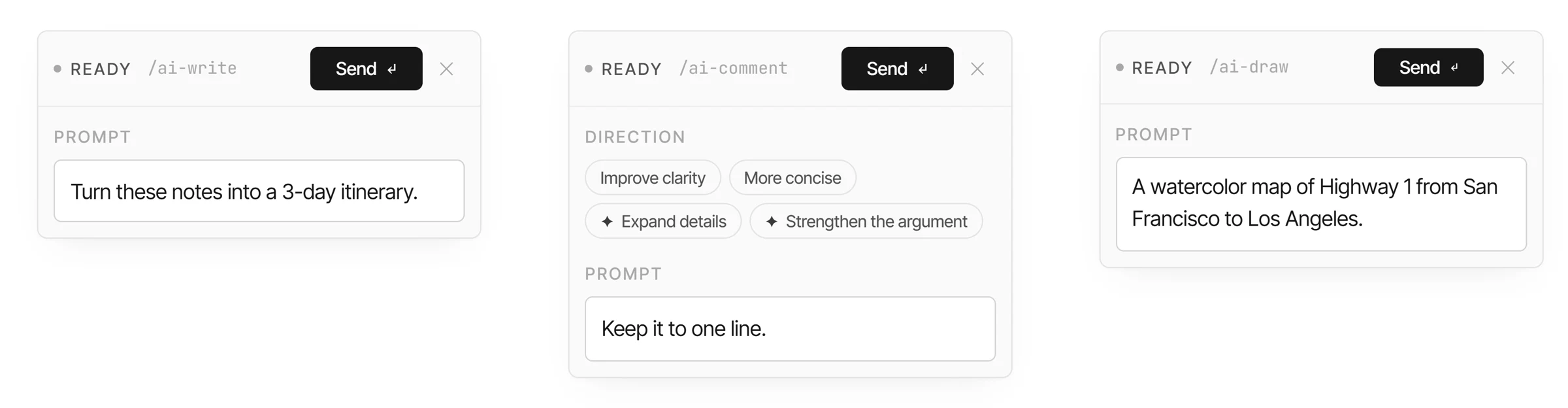
A browser-based AI writing tool. Users choose where their writing lives, and AI enters when invited—through /ai-write, /ai-comment, and /ai-draw. Generated results appear as proposed first, and only enter the document after the user accepts.一个基于浏览器的 AI 写作工具。用户自己决定内容存在哪里,AI 在需要时以 /ai-write、/ai-comment、/ai-draw 的形式介入,生成结果先以“待确认(proposed)”状态呈现,用户“接受(accept)”后才进入文档。
Chat-first AI writing loses context. Users are forced to move information between the document and a chat window. Content gets locked into a product database, and AI calls depend on a vendor.对话式 AI 写作丢失上下文,用户被迫在文档和对话窗口之间搬运信息,内容被锁进产品数据库,AI 调用依赖厂商。
Instead of building AI as a separate workspace, let AI enter the writing flow as Markdown-native commands.与其把 AI 做成一个独立工作区,不如让 AI 以 Markdown 原生命令的形式进入写作流。
Principle 1核心原则一
Choose where your writing lives.内容存在哪里,由你决定。
Local folder (File System Access API) · Google Drive (cross-device) · Browser (IndexedDB + export)本地文件夹(File System Access API)· Google Drive(跨设备)· 浏览器(IndexedDB + 导出)
→ Users own their content; Markdown stays portable→ 内容归属用户,Markdown 保持可移植
Principle 2核心原则二
AI that enters when invited.AI 只在被邀请时介入。
Built into the page, never layered over your writing.内嵌在页面中,绝不覆盖在你的文字之上。
→ AI's entry point is a Markdown-native slash command, not a panel→ AI 的入口是 Markdown 原生的斜杠命令,不是面板
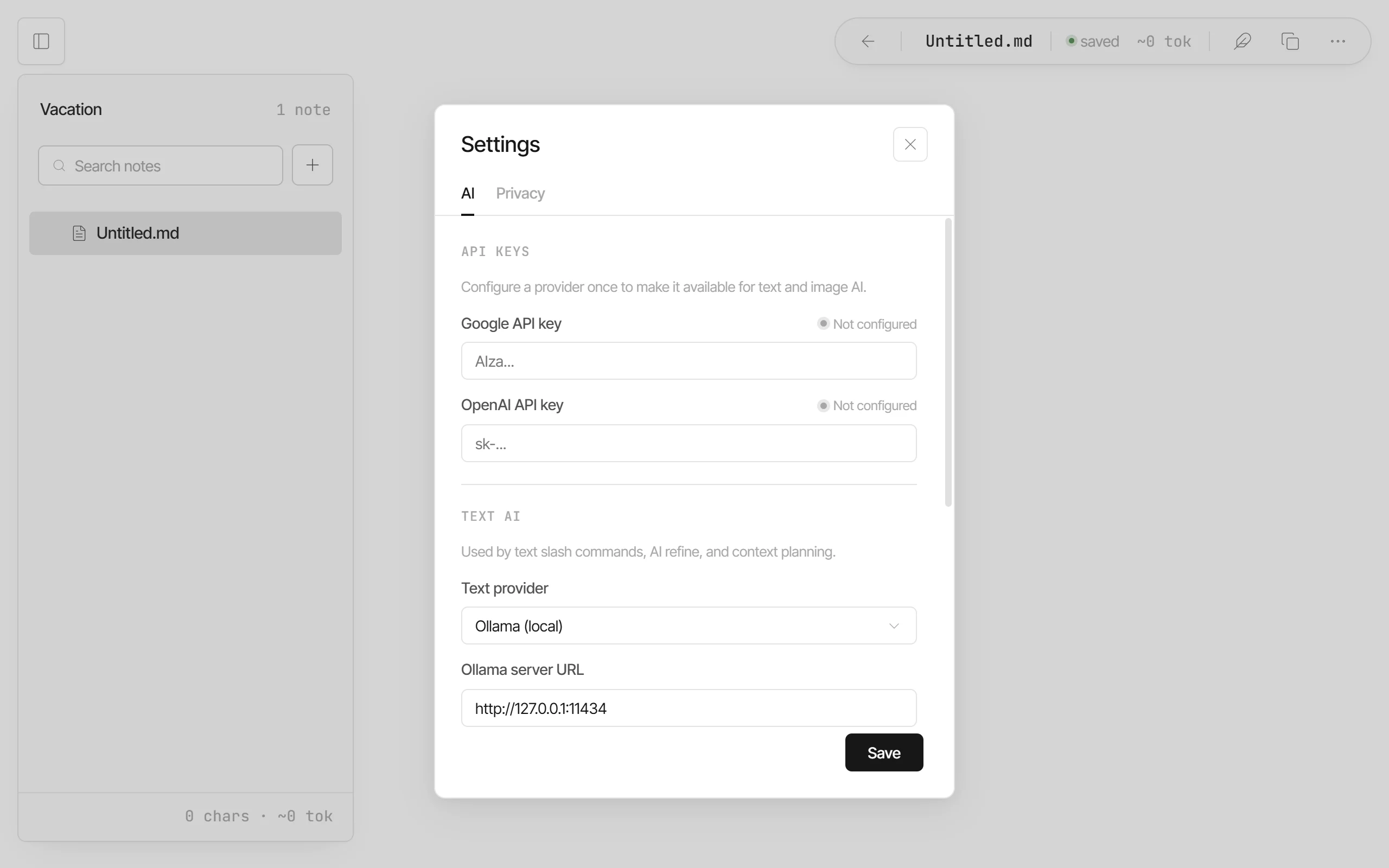
→ AI calls are also under user control: BYOK (Google / OpenAI) or Ollama local (127.0.0.1:11434)→ AI 调用也归用户控制:BYOK(Google / OpenAI)或 Ollama 本地模型(127.0.0.1:11434)
03The Interaction System交互系统
AI's entry point is a Markdown-native slash command.AI 的入口是 Markdown 原生的斜杠命令。
All three commands share the same state machine, control logic, and context mechanism.三个命令共享同一套状态机、控制逻辑和上下文机制。
done in 49.2s on a local model; the agent states “The Notes.md provides all necessary details for creating the itinerary. No additional files are needed.”本地模型 49.2 秒完成,智能体自述“Notes.md 已提供生成行程所需的全部信息,不需要额外文件”。
/ai-write full flow · run on a local model (Ollama), thinking shown at 4× speed/ai-write 完整流程 · 使用本地模型(Ollama)运行,思考过程为 4 倍速
Decision 2: AI Comment — Refine without losing your voice.决策二:AI 评论 — 在保留用户语气的前提下修改。
Judgment判断
Users need to see what changed, not blindly accept.用户需要看到“改了什么”,而不是盲目接受。
Design设计
direction shortcuts (Improve clarity / More concise / ✦ Add an example / ✦ Strengthen the argument) + inline diff.方向快捷区(direction:提升清晰度 / 更简洁 / ✦ 补充示例 / ✦ 强化论点)+ 行内差异对比。
The agent states "The current file is already in context, so no additional files are needed"—showing that context planning decides retrieval scope based on task complexity.智能体自述“当前文件已在上下文中,因此不需要额外文件”——证明上下文规划会按任务复杂度决定检索范围。
/ai-comment: thinking → done → inline diff · run on a local model (Ollama), thinking shown at 4× speed/ai-comment:思考中 → 完成 → 行内差异对比 · 使用本地模型(Ollama)运行,思考过程为 4 倍速
Decision 3: AI Draw — Generated content must be durable.决策三:AI 绘图 — 生成内容必须持久保存。
Judgment判断
If generated images aren't durable, they become disposable.生成图片如果不能持久保存,就会变成一次性垃圾。
Design设计
/ai-draw shares the same interaction structure as Write and Comment./ai-draw 与写作、评论共享同一套交互结构。
Building it hands-on meant dealing with things a mockup never shows: real files, real states, and real edge cases.亲手参与开发,让我碰到了很多设计稿里看不到的问题:真实的文件、真实的状态和各种边界情况。
1. The files are real1. 文件是真的
Notes live on the user's own computer, in the browser, or on GitHub—not in a demo database.用户的笔记存在自己的电脑、浏览器或 GitHub 里,而不是一个演示用的数据库。
The workspace works the same no matter where the files are stored.不管文件存在哪里,工作区的用法都一样。
Generated images are saved as files and linked with relative paths, so they stay with the notes. (See AI Draw above.)AI 生成的图片也存成文件,用相对路径引用,跟着笔记走,不会丢。(见上文 AI 绘图)
2. AI output is unreliable2. AI 的结果不可靠
A run takes from several seconds to almost a minute, and the result can be wrong or can change the user's own wording.AI 一次要跑十几秒到几十秒,结果可能出错,也可能改掉用户原本的写法。
AI output waits for review and only enters the document when the user clicks Accept. (See AI Write above.)AI 生成的内容先等用户确认,点“接受”才写进文档。(见上文 AI 写作)
Edits are marked with strikethrough and highlights, so the user decides what to keep. (See AI Comment above.)修改的地方用删除线和高亮标出来,留不留由用户决定。(见上文 AI 评论)
3. AI costs money and touches privacy3. AI 要花钱,也涉及隐私
Every AI call costs money and sends the user's notes to a third-party model.每次调用 AI 都要花钱,还会把用户的笔记发给第三方模型。
Users can bring their own API key or run a local model.用户可以用自己的 API key,也可以用本地模型。
AI first decides which files it needs and sends only those, not the whole workspace.AI 先判断需要哪些文件,只发送这些,而不是把整个工作区都发出去。
4. The interface has to show state honestly4. 界面要如实反映状态
One editor holds the user's notes, demo content, read-only GitHub repos, and half-written text.同一个编辑器里,有用户自己的笔记、演示内容、只读的 GitHub 仓库,也有写到一半的内容。
Demo content never mixes into the user's own notes.演示内容不会混进用户自己的笔记。
If a change can't be saved, the user isn't offered the option to make it.改了也存不下来的地方,就不让用户改。
Half-written content isn't treated as an error.内容还没写完时,不当作出错。
05What I Actually Built我实际做了什么
Homepage首页
Open a folder → New workspace.打开文件夹(Open a folder)→ 新建工作区(New workspace)。
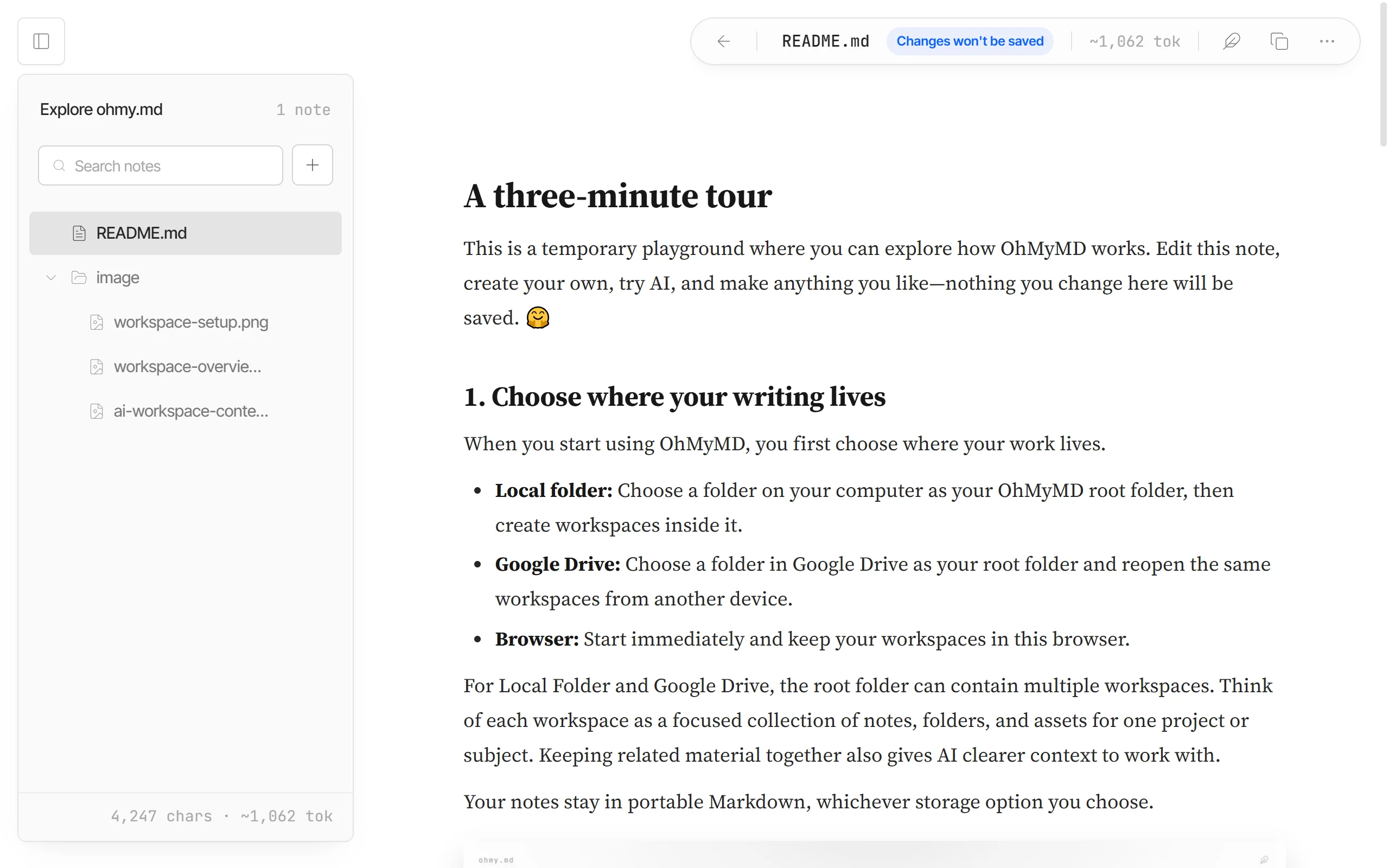
"A three-minute tour"—the product explained in Markdown.“三分钟导览(A three-minute tour)”——用 Markdown 解释产品。
Settings设置(Settings)
BYOK + Ollama local model.BYOK + Ollama 本地模型。
GitHub sharingGitHub 分享
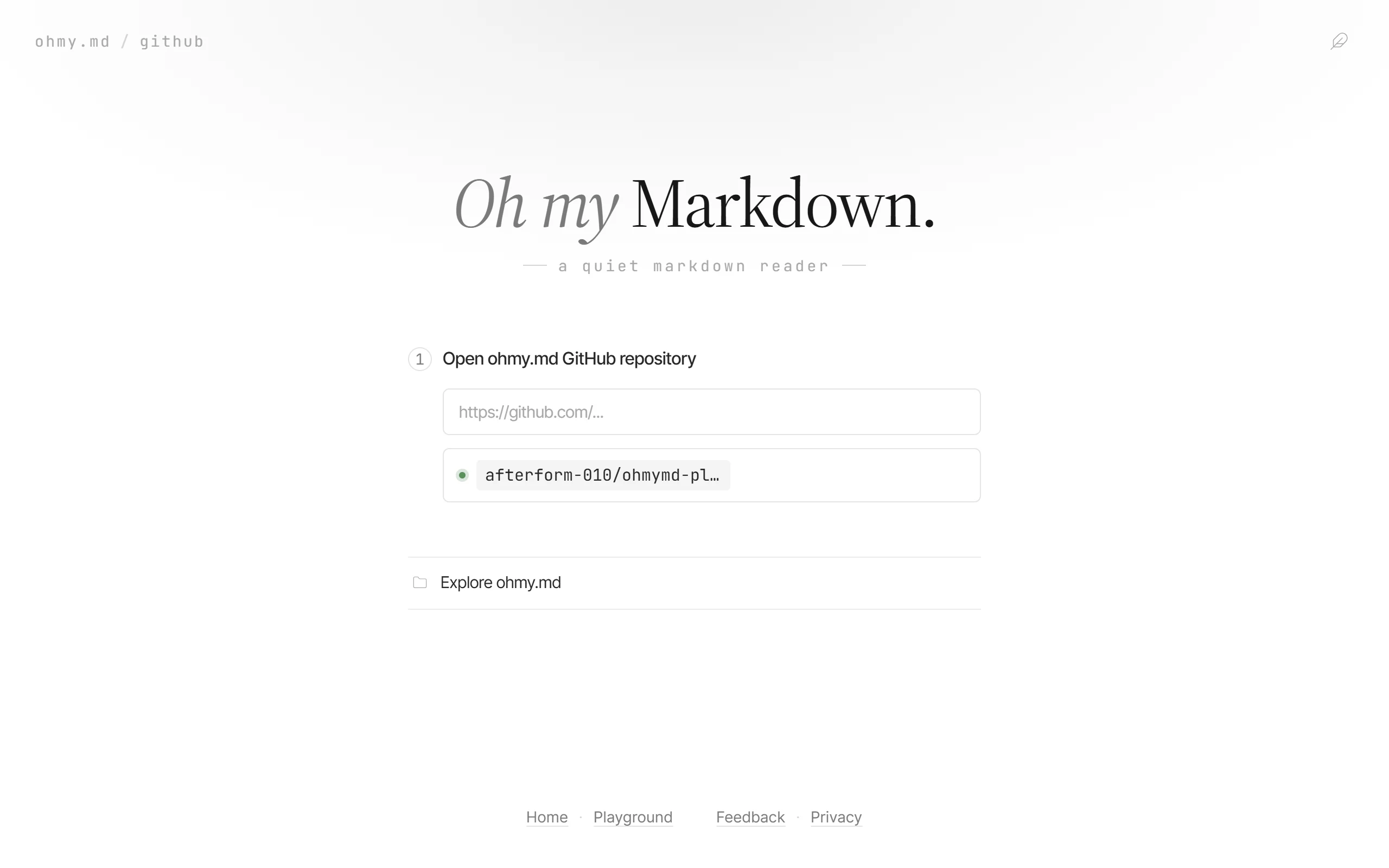
Write locally → Push with Git → Share the link.本地写作 → 用 Git 推送 → 分享链接。
AI agent accessAI 智能体接入
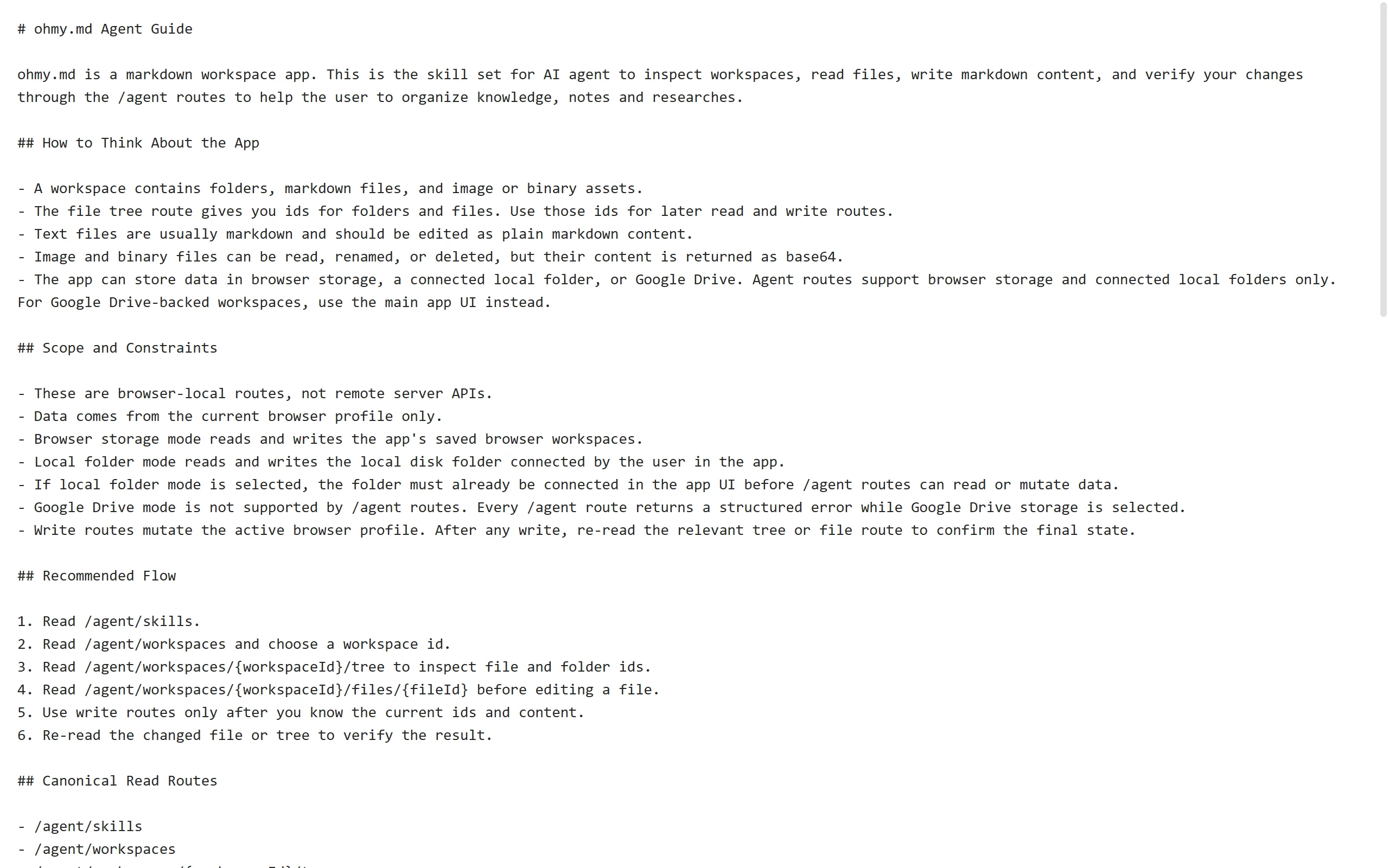
an agent reads and writes notes via /agent/skills.智能体通过 /agent/skills 读写笔记。
Playground: “A three-minute tour”演示页(Playground):“三分钟导览”Settings: BYOK + Ollama local model设置(Settings):BYOK + Ollama 本地模型GitHub sharing: open a repo by linkGitHub 分享:用链接打开仓库AI agent access: /agent/skillsAI 智能体接入:/agent/skills
06Live Product: Where It Stands已上线:现状与下一步
Where it stands现状
Status上线
Live and under ongoing iteration.产品已上线,持续迭代中。
Users用户
1 active user so far—a friend of mine.目前有 1 位活跃用户,是我的一位朋友。
How I collect feedback怎么收集反馈
Feedback主动反馈
An embedded Tally form collecting overall rating, points of confusion, and the most useful features.内置 Tally 表单,收集整体评分、困惑点和最有用的功能。
Usage使用行为
Microsoft Clarity shows how people actually use it, with note content masked in recordings.接入 Microsoft Clarity 观察用户实际怎么用,笔记内容在录屏中做了遮挡。
What I don't know yet还不知道的
Honest note诚实标注
The user base is very small, and no formal usability testing has been done.用户规模很小,也还没做正式的可用性测试。
Next下一步
Validate how to keep more people using it, and how context planning performs in larger workspaces.验证怎么让更多人持续用下去,以及上下文规划在更大的工作区里表现如何。
Tally feedback formTally 反馈表单
07What This Proves这个项目证明了什么
Reflection反思
This project strengthened my ability to translate AI judgment into product rules—moving between interaction states, context mechanisms, user control, and system persistence.这个项目提升了我把 AI 判断转化为产品规则的能力——在交互状态、上下文机制、用户控制和系统持久化之间来回切换。
Designing for AI-assisted tools requires finding a precise balance between automation and user control, and making AI behavior visible, reviewable, and reversible.为 AI 辅助工具做设计,需要在自动化与用户控制之间找到精确的平衡点,并让 AI 的行为可见、可审查、可撤销。
What this project proves这个项目证明了什么能力
Leading the design of an AI-assisted tool and co-building it, translating design judgment into a working product. Designing where AI should enter, where it should stop, and what happens when it fails.主导设计并参与开发 AI 辅助工具,能把设计判断转化为可运行产品。能设计 AI 在系统中该在哪里介入、在哪里停下、出错时怎么办。
Remaining questions仍未解决的问题
How to validate context planning reliability in larger workspaces.如何在更大工作区中验证上下文规划的可靠性。
How to sustain more users.如何让更多用户持续使用。
How to make AI behavior more explainable without adding user burden.如何在不增加用户负担的前提下,让 AI 的行为更可解释。